Using the FALSE function
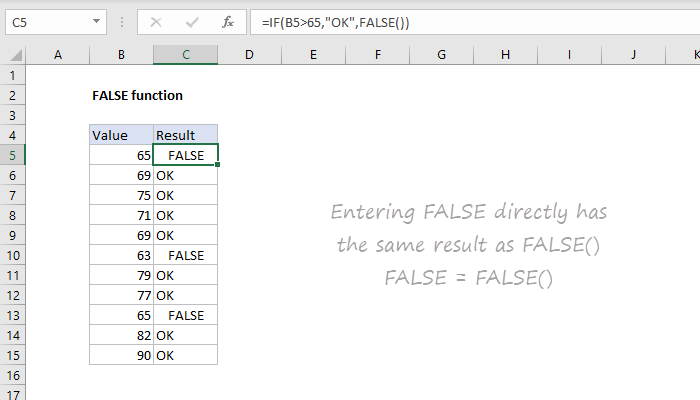
The FALSE function returns the Boolean value FALSE. In other words, the three formulas below based on the IF function are functionally equivalent:
=IF(A1>65,"OK",FALSE())
=IF(A1>65,"OK",FALSE)
=IF(A1>65,"OK")
All three formulas return FALSE if the value in A1 is not greater than 65.
The FALSE function is classified as a “compatibility function”, needed only for compatibility with other spreadsheet applications. There is no need to use the FALSE function if you are creating a spreadsheet in Excel.
Note that logical expressions will automatically generate TRUE and FALSE results. For example, the formula below will automatically return TRUE if the value in A1 is greater than 90 and FALSE if not:
=A1>90
To test a condition and return different results based on whether the results are TRUE or FALSE, see the examples on this page.